

Description
Download Disk Drill Media Recovery – Secure File Recovery for Windows & macOS
Overview & What Makes Disk Drill Media Recovery Stand Out
Disk Drill Media Recovery is a powerful, yet user‑friendly data‑recovery solution that works on both Windows and macOS platforms. Whether you’ve accidentally deleted important photos, lost a video after a system crash, or need to retrieve documents from a corrupted external drive, Disk Drill offers both “quick scan” and “deep scan” modes to locate and restore lost files. Unlike many free utilities that only scrape superficial sectors, Disk Drill builds a comprehensive map of the storage device, allowing it to recover files even from partially damaged partitions. The software also includes a disk imaging feature, enabling you to create a sector‑by‑sector copy of a failing drive before attempting any recovery—an essential step for preserving data integrity. While no recovery tool can guarantee 100 % success, Disk Drill consistently ranks among the top choices for home users and small businesses because it balances advanced technology with an intuitive interface. Its free tier allows you to recover up to 500 MB on Windows or 1 GB on macOS, giving you a risk‑free way to test the engine before committing to a paid license. In short, Disk Drill Media Recovery is a secure, regularly updated tool that delivers reliable results without demanding deep technical knowledge from the user.
Key Features That Power Your Recovery Experience
- Quick Scan & Deep Scan: Choose a fast, surface‑level scan for recently deleted files or a thorough deep scan that combs through every sector of the drive.
- Wide File Type Support: Recovers over 400 file formats, including photos (JPEG, PNG, RAW), videos (MP4, MOV, AVI), documents (PDF, DOCX), archives (ZIP, RAR), and more.
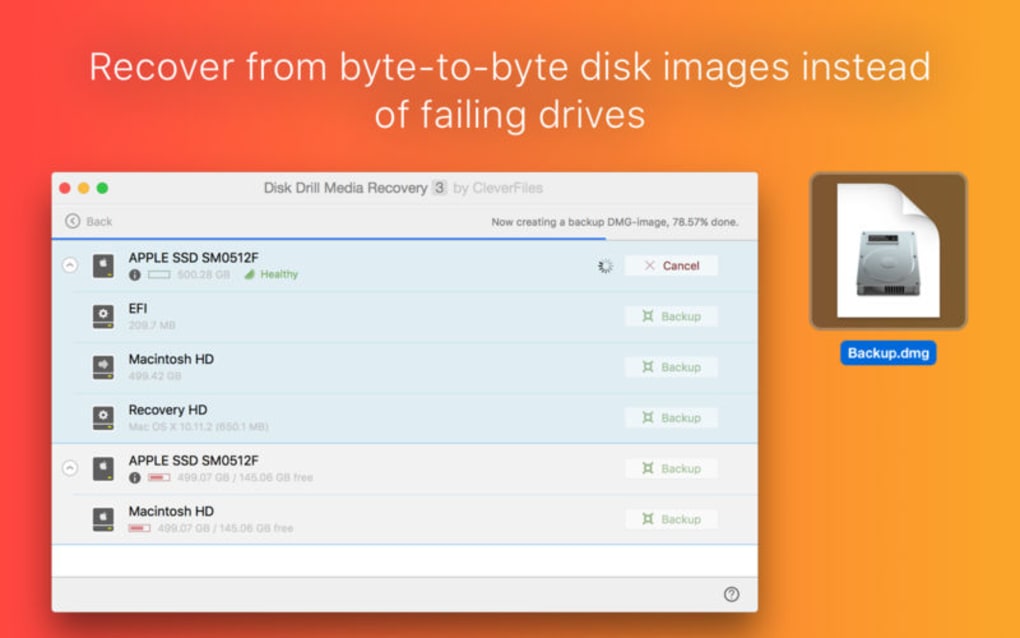
- Disk Imaging: Creates a complete, read‑only clone of a failing disk, allowing safe recovery attempts without further damaging the original media.
- Preview Before Recovery: Lets you view thumbnails and file metadata so you can confirm the integrity of recovered items before committing space.
- Secure Data Vault: Built‑in encryption protects recovered files with a password‑protected vault, ensuring privacy for sensitive documents.
- Smart Recovery Algorithm: Uses adaptive scanning techniques that prioritize high‑probability sectors, reducing recovery time on large drives.
- Cross‑Platform Compatibility: Native installers for Windows 10/11 (64‑bit) and macOS 10.14+ (Catalina, Big Sur, Monterey, Ventura).
- Automatic Updates: Regular firmware and signature updates keep the recovery engine current with the latest file system changes.
- Free Trial & Transparent Pricing: Test the full feature set with a limited‑size free recovery; upgrade to Pro for unlimited restores.
These features combine to create a robust toolkit that covers virtually every recovery scenario you might encounter. The ability to create a disk image first is especially valuable for professionals who need to preserve evidence for forensic analysis. Meanwhile, casual users benefit from the sleek UI, which presents complex processes in clear, step‑by‑step wizards. Disk Drill’s secure vault also addresses the growing concern over data privacy, making it a trustworthy option for handling confidential files after a breach or accidental deletion.
Installation, Usage Walkthrough & Compatibility Details
Step‑by‑Step Installation Guide
Installing Disk Drill Media Recovery is straightforward on both Windows and macOS. Begin by downloading the installer from the official website (a secure HTTPS connection). For Windows users, run the .exe file, accept the license agreement, and choose the default installation path to avoid permission issues. macOS users will download a .dmg file; open it, drag the Disk Drill icon into the Applications folder, and confirm any system security prompts. The installer also bundles the necessary driver extensions for low‑level disk access, which will be automatically authorized during the first launch. After installation, launch the program and grant administrator rights when prompted—this is required for the software to read raw disk sectors.
How to Perform a Quick Scan
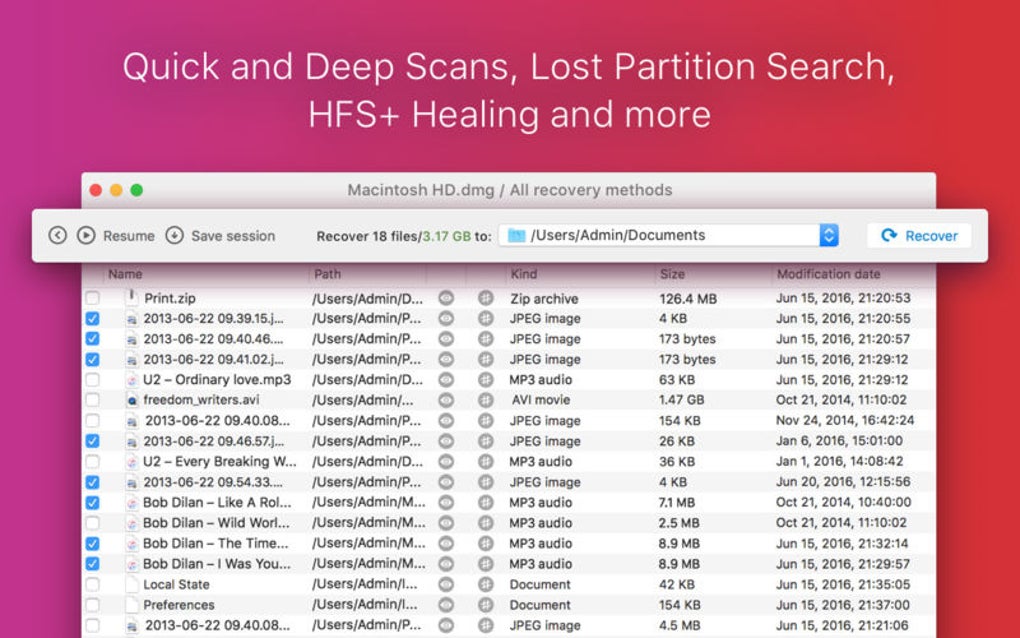
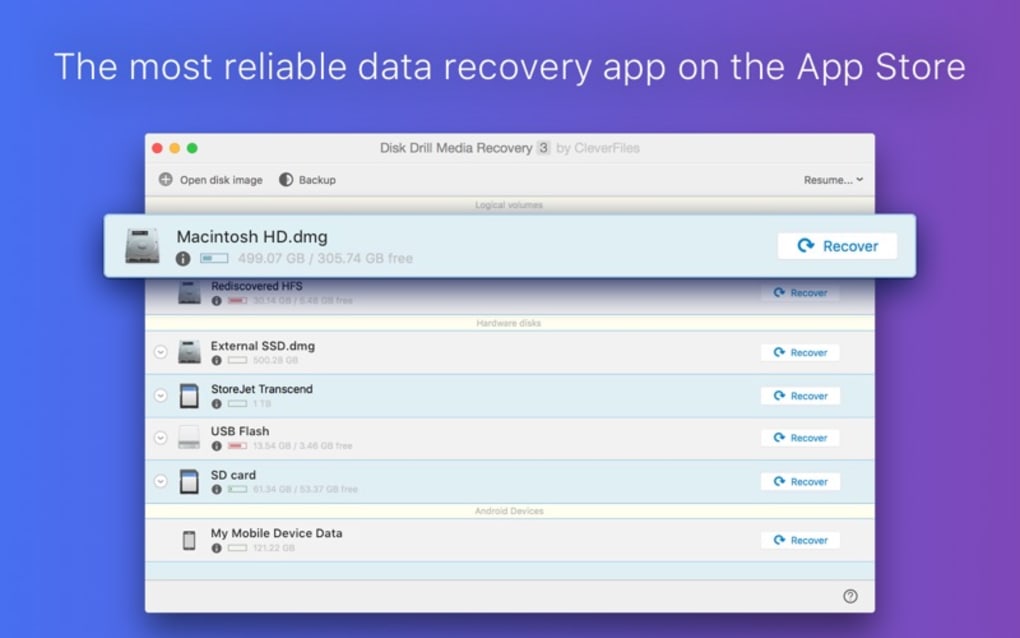
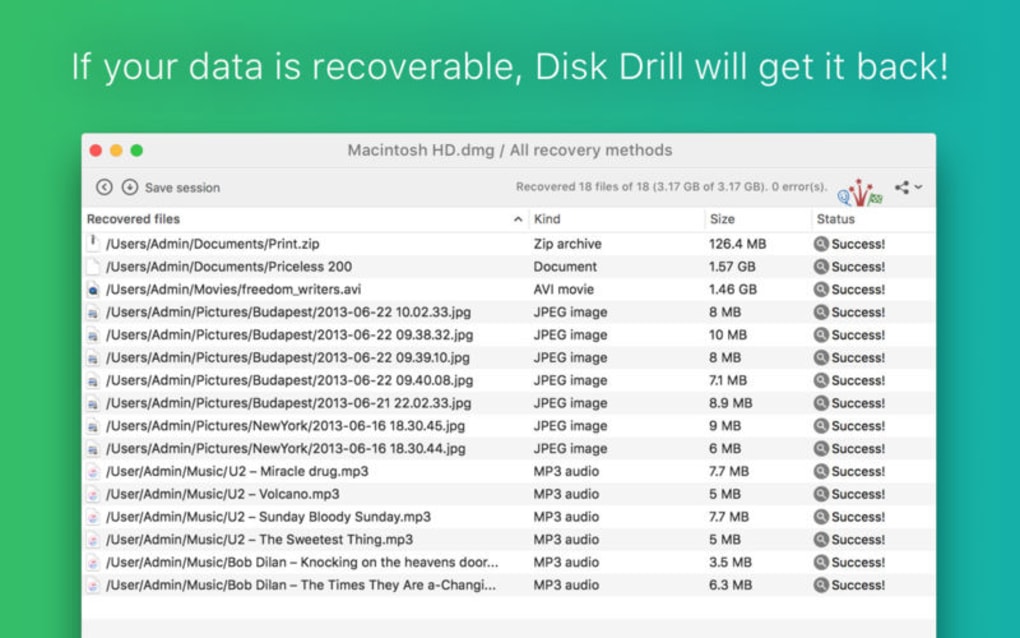
Once the interface loads, you’ll see a dashboard listing all connected storage devices. Select the drive you wish to recover from, then click the “Quick Scan” button. Disk Drill immediately scans the file system’s master file table (MFT) for entries marked as deleted. Within minutes, you’ll see a list of recoverable files sorted by type, size, and date. Use the built‑in preview pane to verify file integrity, then select the items you need and click “Recover.” Choose a different destination drive (never recover to the same drive) to avoid overwriting other lost data.
Deep Scan for Challenging Recoveries
If the quick scan yields insufficient results—common after formatting, partition loss, or severe corruption—switch to the “Deep Scan” mode. This operation scans the entire disk surface sector by sector, reconstructing file signatures based on known headers and footers. Although deep scanning can take several hours on large drives, Disk Drill’s smart algorithm pauses and resumes automatically, allowing you to continue other work. The software also displays a progress bar with estimated completion time, and you can filter results by file type to speed up navigation.
Compatibility and System Requirements
Disk Drill Media Recovery supports the following operating systems:
- Windows 10 and Windows 11, 64‑bit only (requires .NET Framework 4.7 or later).
- macOS 10.14 (Mojave) through macOS 13 (Ventura) – both Intel and Apple Silicon (Rosetta 2 translation for Intel‑based binaries).
Minimum hardware requirements include a 2 GHz processor, 2 GB RAM (4 GB recommended), and at least 500 MB of free disk space for the application itself. For large drives (>2 TB), a faster SSD will dramatically reduce scan times. The software also works with external USB, Thunderbolt, and eSATA drives, making it ideal for recovering data from portable media cards and network‑attached storage.
Pros, Cons & Real‑World Verdict
Advantages of Using Disk Drill
- User‑Friendly Interface: Even beginners can launch scans and recover files without consulting a manual.
- Comprehensive Scan Options: Quick and deep scans cover a broad spectrum of data‑loss scenarios.
- Disk Imaging Capability: Safely creates a clone of failing drives, preserving original data for later attempts.
- Secure Vault Feature: Built‑in encryption keeps recovered sensitive files protected.
- Cross‑Platform Support: One solution works seamlessly on both Windows and macOS.
- Regular Updates: Frequent signature and engine updates improve compatibility with newer file systems.
Potential Drawbacks to Consider
- Limited Free Recovery Volume: The free tier caps at 500 MB (Windows) / 1 GB (macOS), which may be insufficient for large‑scale recoveries.
- Deep Scan Can Be Time‑Consuming: Scanning multi‑terabyte drives may take several hours, especially on older hardware.
- Pro License Cost: Full unlimited recovery requires a paid license, which might be a barrier for occasional users.
- Administrator Rights Required: The need for elevated permissions can be a concern in tightly controlled corporate environments.
Overall, Disk Drill Media Recovery earns a solid 4.5‑star rating for its blend of power, ease of use, and cross‑platform availability. The pros—especially the disk imaging and secure vault—outweigh the cons, making it a worthwhile investment for anyone who values data safety.
Frequently Asked Questions
Can Disk Drill recover files from a formatted drive?
Yes. Disk Drill’s deep scan can locate file signatures on a formatted drive, even if the file system has been removed. However, recovery success depends on whether the data blocks have been overwritten.
Is the recovered data safe from malware?
Disk Drill does not alter the recovered files; it merely copies them. Nevertheless, it’s recommended to run a fresh antivirus scan on the recovered items before opening them.
Can I use Disk Drill on a network‑attached storage (NAS) device?
Yes, provided the NAS is mounted as a local drive on your computer. Disk Drill treats any mounted volume like a regular disk.
What is the difference between the free and Pro versions?
The free version limits recovery to 500 MB on Windows or 1 GB on macOS and does not include advanced features such as unlimited deep scans, disk imaging, or the secure vault. The Pro license removes these limits and unlocks all premium tools.
How often are updates released for Disk Drill?
The development team pushes updates roughly every 4‑6 weeks, covering new file‑system support, performance enhancements, and security patches.
Conclusion & Call to Action
Disk Drill Media Recovery stands out as a secure, feature‑rich solution that balances professional‑grade capabilities with an approachable user interface. Whether you’re a photographer desperate to retrieve a lost portfolio, a small‑business owner protecting client documents, or a casual user who accidentally erased a family video, Disk Drill offers a reliable path to recovery. Its free tier provides enough functionality to test the engine, while the Pro license unlocks unlimited scans, disk imaging, and advanced security features. If data loss is a risk you can’t afford to ignore, downloading Disk Drill today is a proactive step toward safeguarding your digital assets.
Click here to download Disk Drill Media Recovery and start recovering your files securely and quickly.
Guides & Tutorials for Disk Drill Media Recovery
How to install Disk Drill Media Recovery
- Click the Preview / Download button above.
- Once redirected, accept the terms and click Install.
- Wait for the Disk Drill Media Recovery download to finish on your device.
How to use Disk Drill Media Recovery
This software is primarily used for its core features described above. Open the app after installation to explore its capabilities.
User Reviews for Disk Drill Media Recovery 0
No reviews found





.webp)